Send an attachment on LinkedIn message: what works at each stage
Sending an attachment on a LinkedIn message only works with the right timing. See exactly which conversation stage calls for a PDF, voice note or video.
Only send attachments on LinkedIn once interest has been shown and the recipient has been given control. This avoids resistance and ensures documents are actually opened and appreciated.
Sending an attachment on a LinkedIn message works best once someone has shown genuine interest, and once you clearly explain why you're sending it. Without that context, a file quickly feels like a burden and gets opened far less often. So start with a short message, and only add a document once the conversation actually calls for one. This article walks you through exactly how to handle this, stage by stage.
- Don't send an attachment in your first message; spark interest first
- Always explain why you're sharing a file, or it will simply get ignored
- Pick the right format for the right moment, such as a PDF, voice note or video
- Keep files short and mobile-friendly for a better candidate experience
When sending an attachment on a LinkedIn message is actually worthwhile
Sending an attachment on a LinkedIn message only has an effect once someone is genuinely open to more information. In that first contact, it's really all about recognition and trust. That's why a personal connection request works far better than attaching a document straight away on LinkedIn. It lowers the barrier and considerably increases your chances of a reply.
An excellent moment to send a LinkedIn message with a file is right after someone's first reply. At that point you can briefly explain what you're sending and why. Think of a message such as: "Shall I send you a short PDF with more information about the role and the team?" This puts the recipient in control and avoids unnecessary resistance.
An attachment is only useful once it adds value straight away. Sending a job vacancy as a PDF to a candidate, for example, works brilliantly when someone specifically asks about the details or terms. Without that question, a file quickly feels like extra work for the reader.
How sending an attachment on a LinkedIn message actually works
Adding a document on LinkedIn is very straightforward. You open a conversation, click the file icon, and upload your document directly. You can use different formats here; think of sending a PDF on LinkedIn, or sharing an image or a short video. Always add a brief explanation, though, so the recipient knows exactly what they're getting and why it's relevant.
Also pay close attention to file size and readability. Since many candidates open messages on their phone, compact documents simply work best. Keep paragraphs short and headings clear. If a file is too large, you're better off sharing a link or putting a brief summary straight in your message.
Finally, always check how your message looks on a mobile screen. A LinkedIn message with a file that has no further explanation or clear structure gets skipped over quickly. That's why we usually opt for a short text, with a reference to further information added where useful.
Sending an attachment on a LinkedIn message via InMail and recruiter tools
When you add an attachment to an InMail via LinkedIn Recruiter or Sales Navigator, you do this directly in the message window. Because the options can vary slightly between environments, it's worth testing this beforehand. Either way, the content of your message remains the deciding factor. Without a clear reason, a recipient will rarely open a file at all.
In practice, we see that short, targeted messages during first contact work far better than lengthy documents. The Manpower InMail case study showed that genuinely valuable conversations started perfectly well without heavy attachments. We like to keep our approach simple: we only send a file once it directly answers a question from the candidate.
Want more control over your messages? Read on to find out how personalised LinkedIn InMails can help you communicate even more precisely and effectively.
Write a personal message right here
Enter a name or LinkedIn URL and get a personalised message within 30 seconds. No account needed.
Sending an attachment on a LinkedIn message by conversation stage
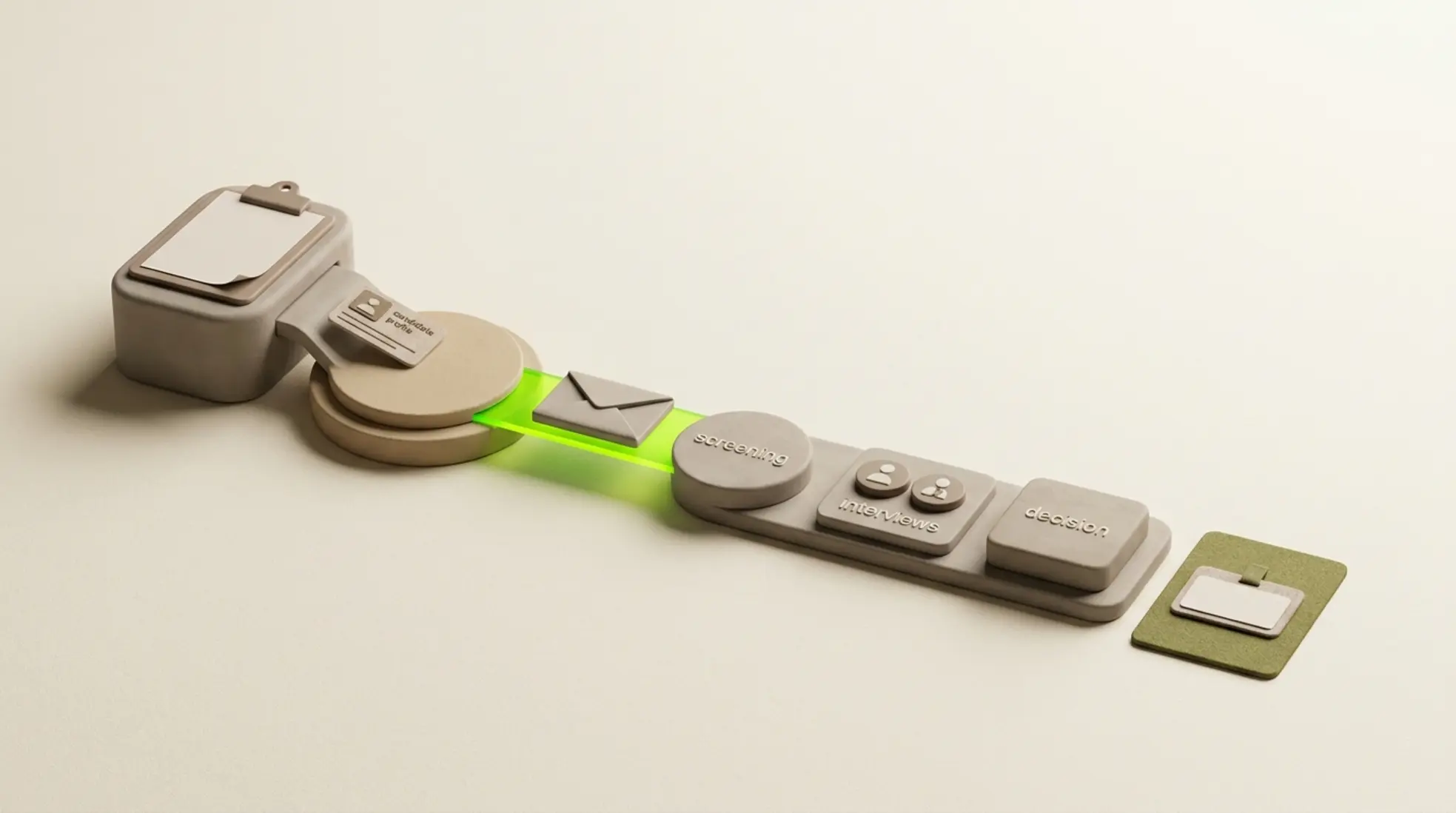
The stage of the conversation strongly determines whether your attachment lands well. Being deliberate about this keeps your communication accessible and relevant.
- First contact: don't use attachments. Ask a short, intriguing question and keep it personal. This stops your message from feeling like a mass mailout.
- After the first reply: share a short PDF or a link. This could be a concise job advert or a compact summary the recipient can scan quickly.
- Going deeper: send a full PDF of the vacancy for the candidate, or a presentation. You could also choose to share the vacancy on LinkedIn, so the person decides for themselves when to read further.
Sending an attachment on a LinkedIn message at the right stage creates less friction and leads to more conversations. It's exactly why we always match the content seamlessly to the moment.
Alternatives to sending an attachment on a LinkedIn message
A document isn't always the best choice. A voice note on LinkedIn, for example, feels very personal and works remarkably well after an initial reply. A voice message from a recruiter is particularly ideal for candidates who are often on the move and would rather just listen to the information quickly.
Sending a video on a LinkedIn message can also be highly effective, provided first contact has already been made. A short, personal video quickly gives context and makes your message feel far more human. Generic videos that lack a personal angle, on the other hand, get watched a lot less.
In many situations, a short text with a clear core message still works best. Within the world of rich media recruitment, this is a deliberate choice for the type of content that perfectly fits the moment. The big advantage is that the recipient ultimately has to make as little effort as possible.
Common mistakes when sending an attachment on a LinkedIn message
- Sending too early: a file without the right context often ends up unread in the bin.
- A file that's too large: this is difficult to open on a mobile phone, making it far less effective straight away.
- Not adding an explanation: the recipient has no idea why the document would be relevant to them.
- Sending too much at once: attaching several documents together quickly leads to choice overload.
- Using generic content: a standard document feels impersonal and gives the impression of mass production.
All of these pitfalls have a direct impact on how your organisation comes across to candidates. On our page about candidate communication for corporate recruiters, you'll discover exactly how structure and content come together to create truly compelling messages.
A practical rule of thumb for sending an attachment on a LinkedIn message
In practice, use a simple question as your guide: does this document genuinely help the candidate right now? If the answer is no, hold off for a little longer. Only once someone asks targeted questions or shows clear interest is a document the perfect tool for providing clarity faster.
Still not sure? Then simply go for a short text and offer, with no obligation, to send something over. That keeps the conversation open and approachable at all times. Want to take a more structured approach? Try personalised LinkedIn messages to easily test this process within your daily workflow.
Frequently asked questions
Yes, you can easily send a PDF via LinkedIn using the messaging feature. Simply upload your file and always add a short, clear explanation. That way the other person immediately knows exactly what's been sent.
This works far best after a first reply. At that specific point, interest has already been sparked and the candidate is open to additional information, such as a document or a presentation.
Definitely, especially during the follow-up steps of a process. It feels nicely personal and takes the candidate relatively little effort to listen to, which is a real advantage for mobile use.
That really depends on the specific situation. A short, clear document works fantastically well when there's targeted interest. Sharing a link, on the other hand, is far more convenient when you want to offer a large amount of information without instantly weighing down the conversation.
Write a personal message right here
Enter a name or LinkedIn URL and get a personalised message within 30 seconds. No account needed.
Want to make your LinkedIn outreach more effective?
Elvatix helps you structure candidate contact and optimise the candidate experience. Manage your communication flow and timing centrally for maximum results.